Billing for a crackers shop
பட்டாசு கடைக்கான பில்லிங்
Your salesman bills from a phone.
The counter just prints.
சேல்ஸ்மேன் ஃபோனிலேயே பில் போடுவார்.
பேமெண்ட், பிரிண்ட் கவுண்டர்-ல.
Spark is a two-app billing system built for the Diwali rush — the salesman walks the shop with a phone and shows the customer a live total, the counter turns it into an A4 bill in one tap. No internet needed. Ever.
தீபாவளி கூட்டத்தை எளிதாக சமாளிக்கவே உருவாக்கப்பட்ட பில்லிங் சிஸ்டம் இது. சேல்ஸ்மேன் ஃபோனிலேயே பில் தொகையை கஸ்டமரிடம் காட்டிவிடுவார், கவுண்டரில் உடனடியாக A4 பில் ரெடியாகிவிடும். Internet தேவையே இல்ல.
Two apps, one shop
ரெண்டு ஆப், ஒரே கடை
The counter is the brain. The phones are the hands.கவுண்டர் மூளை. ஃபோன்கள் அதன் கைகள்.
The counter PC runs the shop and holds every bill. The phones connect straight to it over your own shop wifi — the internet is never in the picture, so a dropped connection outside can't stop a sale.
எல்லா பில்களும் கவுண்டர் கம்ப்யூட்டரிலேயே இருக்கும், ஃபோன்கள் கடை Wifi மூலம் அதோடு நேரடியாக இணைந்து கொள்ளும். இதற்கு Internet தேவையில்லை என்பதால், Internet கட் ஆனாலும் உங்கள் வியாபாரம் எந்த தடையுமின்றி தொடர்ந்து நடக்கும்.
Spark Counter
The shop laptop. Holds every item, every bill — and serves the phones.
கடையின் மெயின் கம்ப்யூட்டர். எல்லா பொருள், எல்லா பில்-ம் இதுல — ஃபோன்-களுக்கும் இதுவே சர்வர்.
Spark Counter
WindowsSits on the shop laptop. Items, billing, printing, reports, staff — and it is the server the phones talk to.
ஸ்டாக், பில்லிங் என கடையின் முழு வேலைகளையும் இந்த லேப்டாப் தான் செய்யும். மற்ற ஃபோன்களை இணைத்து இயக்கும் மெயின் சர்வராகவும் இதுவே செயல்படும்.
- Two-pane billing — pick items, live total, printஇரண்டு ஸ்கிரீன்கள் (Panels) கொண்ட பில்லிங் வசதி — பொருட்களைத் தேர்ந்தெடுத்து, மொத்த தொகையை உடனுக்குடன் பார்த்து, உடனே பிரிண்ட் எடுக்கலாம்
- Import your price-list PDF instead of typing 500 items500 பொருட்களையும் ஒவ்வொன்றாக டைப் செய்ய வேண்டிய அவசியமில்லை — உங்கள் விலைப்பட்டியல் PDF ஃபைலை நேரடியாக இம்போர்ட் (Import) செய்து கொள்ளலாம்
- Hold & park bills, per-line rate edit, bargain discountபில் போடும்போது அதைத் தற்காலிகமாக நிறுத்தி வைக்கும் வசதியும், பில்லில் உள்ள ஒவ்வொரு பொருளின் விலையையும் தனித்தனியாக மாற்றிக்கொள்ளும் வசதியும் உள்ளது. மேலும், வாடிக்கையாளர்கள் பேரம் பேசும்போது அவர்களுக்கு ஏற்ப சிறப்புத் தள்ளுபடியையும் இதில் எளிதாக வழங்கலாம்.
- A4 bill print, PDF download, day reportA4 சைஸில் பில் பிரிண்ட் எடுக்கவும், அதனை PDF ஆக டவுன்லோட் செய்யவும் வசதி உள்ளது — அன்றைய முழு வியாபார விவரங்களையும் தினசரி ரிப்போர்ட்டாகப் (Day Report) பார்த்துக்கொள்ளலாம்
Spark Sales
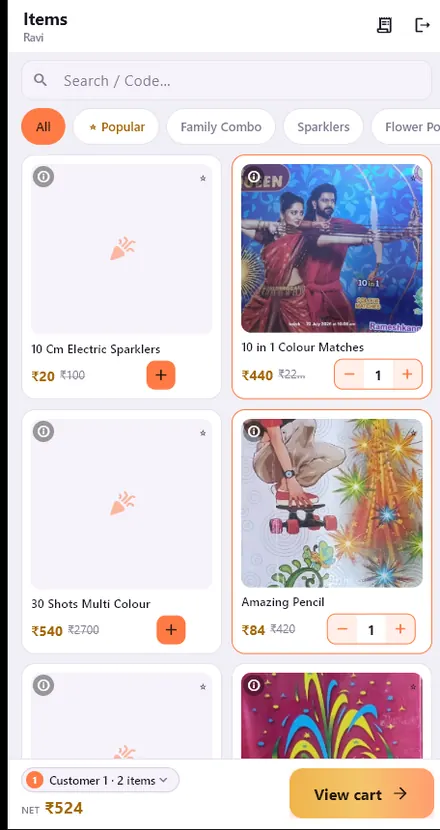
Android · WindowsThe salesman's phone. Scan the counter's QR once, log in with a PIN, and start selling.
சேல்ஸ்மேன் தங்கள் ஃபோனில் கவுண்டர் QR-ஐ ஒருமுறை ஸ்கேன் செய்து, PIN போட்டு லாகின் செய்துகொள்ளலாம். லாகின் ஆனதும் நேரடியாக பில் போடத் தொடங்கிவிடலாம்.
- Photo-first catalog with the customer's price in goldகேட்டலாக்கில் பொருட்களின் போட்டோக்கள் முதலில் தெளிவாகத் தெரியும் — கஸ்டமருக்கான விலை தங்க நிறத்தில் தனித்துக் காட்டப்படும்.
- Shows the customer the total as it grows — no guessingபில்லின் மொத்தத் தொகை கஸ்டமருக்கு உடனுக்குடன் துல்லியமாகக் காட்டப்படும் — இதனால் பில் எவ்வளவு வரும் என்று அவர்கள் தோராயமாக கணக்கிட வேண்டியதில்லை.
- Point the camera at a box to find the itemபொருளின் பாக்ஸ் மீது கேமராவைக் காட்டினால் போதும் — அந்தப் பொருள் உடனடியாக உங்கள் ஸ்கிரீனில் வந்துவிடும்.
- Owner decides who may collect payment on a phoneஃபோன் மூலம் எந்தெந்த சேல்ஸ்மேன் பணம் வாங்கலாம் என்பதை முதலாளியே முடிவு செய்யலாம் — யாருக்கு இந்த அனுமதி (Permission) தர வேண்டும் என்பதை நீங்களே செட் செய்து கொள்ளலாம்.
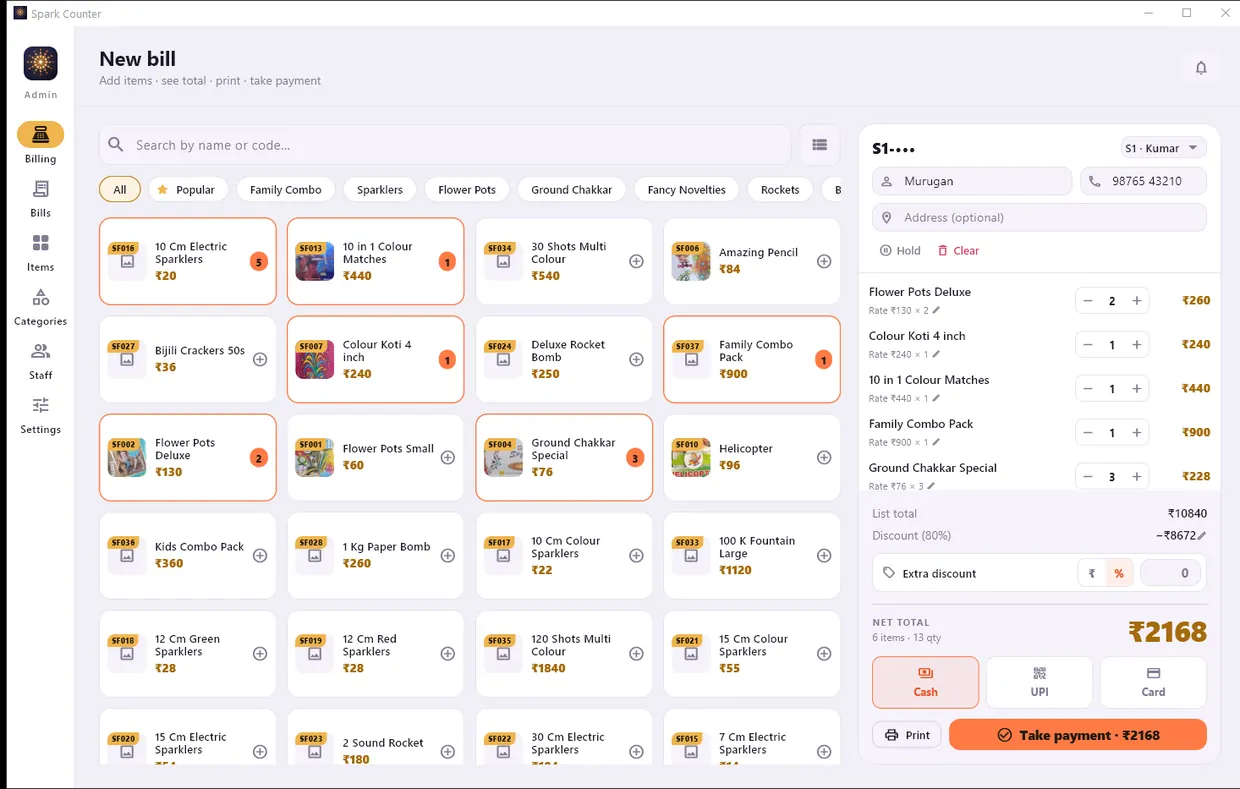
The counter's billing screen — pick items on the left, the customer's bill builds on the right. One tap prints it. பில்லிங் ஸ்கிரீனின் இடது பக்கம் பொருட்களைத் தேர்ந்தெடுக்கலாம், வலது பக்கம் கஸ்டமருக்கான பில் ரெடியாகும். ஒரே ஒரு கிளிக் (Click) செய்தால் போதும், பில் உடனே பிரிண்ட் ஆகிவிடும்.
Built for the season
பண்டிகை சீசன்-க்காகவே
The shop opens three months a year. Nothing here needs setting up.வருஷத்தில் மூன்று மாதம் மட்டும் திறக்குற கடைக்கு ஏத்த மாதிரி — பெரிய செட்டப் எதுவும் தேவையில்லை.
Temporary staff, a crowded floor, no time to train anybody. Every decision in Spark was made with that in mind.
பண்டிகை கால வியாபார சீசனை மனதில் வைத்து, அதற்காகவே இது சிறப்பாக உருவாக்கப்பட்டுள்ளது — சீசன் நேர கூட்டத்தை எந்த சிரமமும் இல்லாமல் எளிதாக சமாளிக்க இது பெரிதும் உதவும்.
Offline-first, not offline-tolerantஇது முழுமையாக ஆஃப்லைனில் இயங்கும் சிஸ்டம்
There is no cloud to reach. The counter PC holds the database and serves the phones on your own wifi. A dead internet line changes nothing.
இதில் கிளவுட் ஸ்டோரேஜ் என்று எதுவுமே கிடையாது. முழு டேட்டாவும் கவுண்டர் கம்ப்யூட்டரிலேயே இருக்கும். கடை Wifi மூலமே இயங்குவதால், Internet கட் ஆனாலும் எந்தப் பிரச்சனையும் வராது.
The customer sees the totalகஸ்டமருக்கு டோட்டல் தெரியும்
The salesman holds the phone out while walking the shop — every item shows its MRP struck through and the real price in gold. Arguments end before the counter.
சேல்ஸ்மேன் ஃபோனிலேயே கஸ்டமர்களுக்கு மொத்தத் தொகையை உடனுக்குடன் காட்டிவிடுவார். இதில் MRP விலை அடிக்கப்பட்டு, உண்மையான விலை தங்க நிறத்தில் தெளிவாகத் தெரியும் என்பதால், கவுண்டருக்குச் செல்லும் முன்பே விலை பற்றிய குழப்பங்கள் தவிர்க்கப்படும்.
Camera finds the itemகேமரா பொருளை கண்டுபிடிக்கும்
Point the phone at the box. Spark reads the printed text and offers the five closest items — and it remembers what that box says, so tomorrow it is faster.
பொருளின் பாக்ஸ் மீது ஃபோன் கேமராவைக் காட்டினால், Spark அதிலுள்ள எழுத்துக்களைப் படித்து சரியான 5 பொருட்களை உடனே காட்டும். பாக்ஸில் என்ன இருக்கிறது என்பதை இது நினைவில் வைத்துக்கொள்ளும் என்பதால், அடுத்த முறை ஸ்கேன் செய்யும் போது இன்னும் வேகமாகச் செயல்படும்.
A bill that adds up on paperபேப்பர்-ல கூட்டிப் பாத்தா சரியா வர்ற பில்
Every line prints MRP, discount %, rate and amount. A customer can add the column up and reach the net total themselves — that is the whole point.
பில்லில் ஒவ்வொரு பொருளுக்கான MRP, தள்ளுபடி மற்றும் விலை தெளிவாக பிரிண்ட் ஆகியிருக்கும். இதனால் கஸ்டமர்கள் தாங்களே கணக்கை கூட்டி மொத்தத் தொகையை எளிதாகச் சரிபார்த்துக் கொள்ளலாம்.
Close the day in one pageஒரே பேஜ்-ல நாள் கணக்கு
A printable day report: total sales, the Cash / UPI / Card split, a per-salesman breakdown and every bill listed. Filter by day, staff or payment first.
அன்றைய முழு வியாபாரக் கணக்கையும் ஒரே பேஜில் பார்த்து பிரிண்ட் எடுத்துக் கொள்ளும் வசதி இதில் உள்ளது. மொத்த விற்பனை, Cash / UPI / Card விவரங்கள் மற்றும் சேல்ஸ்மேன் வாரியான விற்பனை என அனைத்தையும் தேதி, ஸ்டாஃப் மற்றும் பேமெண்ட் வாரியாக ஃபில்டர் (Filter) செய்து எளிதாகப் பார்த்துக் கொள்ளலாம்.
Tamil the way it is spokenபேசுற தமிழ்-லயே
Not textbook Tamil. The app talks the way a shopkeeper does, and keeps English words English where the English word is what everyone actually says.
இது கடினமான புத்தகத் தமிழில் இல்லாமல், கடைக்காரர்கள் இயல்பாகப் பேசும் தமிழிலேயே இருக்கும். மேலும், நாம் வழக்கமாகப் பயன்படுத்தும் Paid, Cash, UPI போன்ற வார்த்தைகள் குழப்பமில்லாமல் அப்படியே ஆங்கிலத்திலேயே கொடுக்கப்பட்டிருக்கும்.
Discounts that follow a ruleஒரு விதிப்படி வர்ற தள்ளுபடி
Set one discount for the shop, override it per category, override that per item. Combo packs can be flat net-rate. The price is computed in exactly one place, so the phone and the bill can never disagree.
முழு கடைக்கும் பொதுவான தள்ளுபடி, குறிப்பிட்ட வகைக்கு (Category) ஒரு தள்ளுபடி, ஒவ்வொரு பொருளுக்கும் தனி தள்ளுபடி என உங்கள் தேவைக்கேற்ப செட் செய்து கொள்ளலாம். காம்போ (Combo) பேக்குகளுக்கு நேரடி நெட் ரேட் (Net Rate) வைத்துக்கொள்ளலாம். விலை கணக்கீடு சிஸ்டமில் ஒரே இடத்தில் மட்டுமே நடப்பதால், சேல்ஸ்மேன் ஃபோனில் ஒரு விலை, பிரிண்ட் ஆகும் பில்லில் வேறு விலை என மாற வாய்ப்பே இல்லை.
You decide who can take moneyயார் பணம் வாங்கலாம் என்பதை நீங்களே முடிவு செய்யுங்க
Each staff account has its own PIN and its own bill-number prefix, so every bill is traceable to a person. Payment permission is per staff, and one account can only be logged in on one phone at a time.
ஒவ்வொரு ஸ்டாஃப்பிற்கும் தனித்தனி PIN மற்றும் பில் நம்பர் (Prefix) இருப்பதால், எந்த பில்லை யார் போட்டார்கள் என்பதை எளிதாகத் தெரிந்துகொள்ளலாம். பணம் வாங்குவதற்கான அனுமதியை ஒவ்வொருவருக்கும் தனித்தனியாக செட் செய்து கொள்ளலாம். மேலும், ஒரு அக்கவுண்ட்டை ஒரே நேரத்தில் ஒரு ஃபோனில் மட்டுமே லாகின் (Login) செய்ய முடியும்.
A power cut loses nothingகரண்ட் போனாலும் டேட்டா எதுவும் அழியாது
The half-finished bill on the counter and the half-finished cart on the phone are both saved as they are typed. Open the app again and everything is where you left it.
கவுண்டரில் பாதி போட்ட பில் மற்றும் ஃபோனில் பாதி சேர்த்த கார்ட் என அனைத்தும் நீங்கள் டைப் செய்யும்போதே உடனுக்குடன் சேமிக்கப்படும். சிஸ்டமை மீண்டும் திறக்கும்போது எல்லாம் அப்படியே இருக்கும், விட்ட இடத்திலிருந்தே பில் போடத் தொடரலாம்.
What the customer takes home
கஸ்டமர் கையில கொடுக்குற பில்
A bill they can add up themselves கஸ்டமரே கூட்டி சரிபார்க்கக்கூடிய தெளிவான பில்
Most shop bills print one number per line and one number at the bottom, and the customer has to take the discount on trust. Spark prints the whole arithmetic.
சாதாரண பில்களில் ஒவ்வொரு பொருளுக்கும் ஒரு விலை, கடைசியில் ஒரு மொத்தத் தொகை மட்டுமே இருக்கும். தள்ளுபடி எவ்வளவு என்பதை கஸ்டமர்கள் அப்படியே நம்பித்தான் ஆக வேண்டும். ஆனால், Spark பில்லில் ஒவ்வொரு பொருளுக்கான தள்ளுபடியும், முழுமையான கணக்கும் தெளிவாகப் பிரிண்ட் ஆகிவிடும். கஸ்டமர்களே எல்லாவற்றையும் நேரடியாகப் பார்த்துத் தெரிந்துகொள்ளலாம்.
-
The Amount column adds to the totalAmount column-ஐ அப்படியே கூட்டினாலே டோட்டல் வந்துவிடும்
No number appears in the totals block that isn't reachable from the columns above it.
இதனால் கஸ்டமர்கள் எந்த குழப்பமும் இல்லாமல், தொகையைத் தாங்களே எளிதாகக் கூட்டிச் சரிபார்த்துக் கொள்ள முடியும்.
-
MRP and discount % on every lineபில்லில் ஒவ்வொரு பொருளுக்கும் MRP-யும் தள்ளுபடி %-ம்
"How much did I save?" is answerable from the paper. Combo packs at a flat net rate simply show a dash.
இதனால் ஒவ்வொரு பொருளுக்கும் எவ்வளவு தள்ளுபடி கிடைத்துள்ளது என்பதை கஸ்டமர்கள் எளிதாகப் பார்த்துத் தெரிந்துகொள்ளலாம். நேரடி நெட் ரேட் combo பேக்-க்கு வெறும் கோடு.
-
The bargain gets its own lineபேரம் பேசி வாங்கிய தள்ளுபடி தனி லைன்-ல
Extra discount you gave at the counter is shown separately, instead of hiding inside the item discount.
கஸ்டமர்கள் பேரம் பேசி வாங்கிய கூடுதல் தள்ளுபடித் தொகையும், பில்லில் தனி வரியில் (Extra Discount) தெளிவாகப் பிரிண்ட் ஆகிவிடும். இதனால் பில் தொகையில் எந்தக் குழப்பமும் வராது, கணக்கும் மிகத் தெளிவாக இருக்கும்.
| # | Item | Qty | MRP | Disc | Rate | Amount |
|---|---|---|---|---|---|---|
| 1 | Flower Pots Deluxe 10pc | 2 | 1,300 | 80% | 260 | 520 |
| 2 | Colour Koti 4" | 1 | 1,200 | 80% | 240 | 240 |
| 3 | Jessica Fancy Rocket | 1 | 2,800 | 80% | 560 | 560 |
| 4 | Family Pack 50 items | 1 | — | — | 1,450 | 1,450 |
How it works
எப்படி வேலை செய்யும்
Four steps, start to printed billபொருளைத் தேர்ந்தெடுப்பது முதல் பில் பிரிண்ட் ஆவது வரை — வெறும் 4 Steps
Install on the counter laptopகவுண்டரில் இருக்கும் லேப்டாப் அல்லது PC-யில் இதை இன்ஸ்டால் செய்து கொள்ளுங்கள்
One setup file. Create the owner account with a PIN, then import your price-list PDF — the items, rates and discounts come in on their own.
இதற்கு ஒரே ஒரு செட்டப் (Setup) ஃபைல் மட்டுமே. முதலில் முதலாளி (Admin) அக்கவுண்ட்டிற்கு ஒரு PIN வைத்து உருவாக்கிக் கொள்ளுங்கள். பிறகு உங்கள் Price list PDF-ஐ இம்போர்ட் (Import) செய்தாலே போதும் — பொருட்களின் பெயர், விலை, தள்ளுபடி விவரங்கள் என அனைத்தும் சிஸ்டமில் தானாகவே வந்துவிடும். ஒவ்வொரு பொருளாக டைப் செய்ய வேண்டியதில்லை.
Point the phones at the counterஃபோன்களை கவுண்டர் கம்ப்யூட்டருடன் இணைத்துக்கொள்ளுங்கள்
Both devices on the same shop wifi. The counter shows a QR code — the phone scans it once and remembers. No typing, no accounts, no signup.
கவுண்டர் சிஸ்டமும் ஃபோனும் ஒரே Wifi நெட்வொர்க்கில் இருக்க வேண்டும். கவுண்டர் ஸ்கிரீனில் ஒரு QR கோடு தெரியும் — அதை உங்கள் ஃபோனில் ஒரே ஒரு முறை ஸ்கேன் செய்தாலே போதும், சிஸ்டம் அதை நினைவில் வைத்துக்கொள்ளும். இதற்கு எந்தவிதமான டைப்பிங்கும் தேவையில்லை, சைன் அப் (Sign up) செய்ய வேண்டிய அவசியமும் இல்லை.
The salesman sellsசேல்ஸ்மேன் ஃபோனிலேயே விற்பனை தொடங்குறாரு
Tap items or scan a box, show the customer the running total, then send it to the counter. If you gave that salesman permission, they can collect the money right there instead.
ஃபோனில் பொருளை டேப் (Tap) செய்தோ அல்லது பாக்ஸை ஸ்கேன் (Scan) செய்தோ பில்லில் சேர்த்துக் கொள்ளலாம். கஸ்டமரிடம் மொத்தத் தொகையைக் காட்டிவிட்டு, அந்த பில்லை அப்படியே கவுண்டருக்கு அனுப்பிவிடலாம். ஒருவேளை பணம் வாங்குவதற்கு அனுமதி கொடுத்திருந்தால், சேல்ஸ்மேன்கள் அங்கேயே கஸ்டமரிடம் பணத்தையும் பெற்றுக் கொள்ளலாம்.
The counter bills and printsகவுண்டரில் உடனடியாக பில்லை பிரிண்ட் செய்து கொள்ளலாம்
A bell rings at the counter with the order waiting. Load it, adjust a rate if you bargained, take Cash / UPI / Card, print the A4 bill. The salesman's phone shows "Paid" the moment you do.
ஃபோனிலிருந்து ஆர்டர் வந்ததும் கவுண்டரில் நோட்டிஃபிகேஷன் (Notification) சத்தம் கேட்கும், பில் அங்கே காத்திருக்கும். அதை ஓபன் செய்து, கஸ்டமர் பேரம் பேசினால் அதற்கேற்ப ரேட்டை (Rate) மாற்றி, Cash, UPI அல்லது Card மூலம் தொகையை வாங்கிக்கொண்டு உடனடியாக A4 பில்லை பிரிண்ட் செய்து கொள்ளலாம். இங்கே பில் செட்டில் ஆன அதே நொடியில், சேல்ஸ்மேன் ஃபோனிலும் அந்த பில் "Paid" என்று மாறிவிடும்.
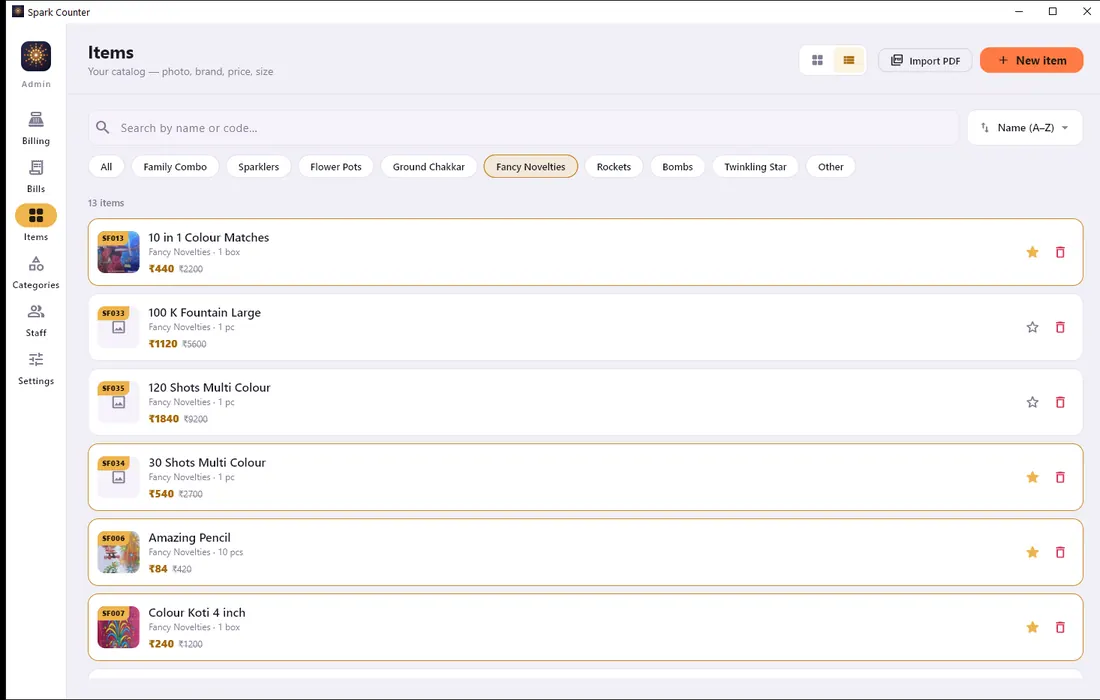
Your catalog — photo, code, price, discount உங்க கேட்டலாக் — photo, code, விலை, தள்ளுபடி
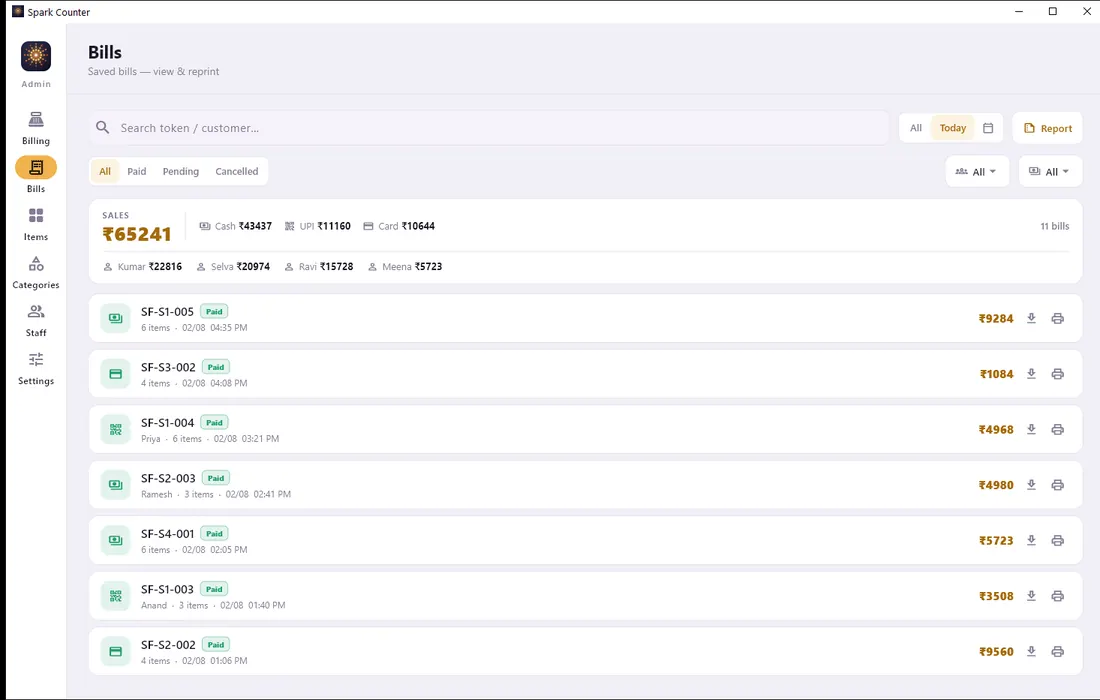
Every bill, with the day's Cash / UPI / Card split எல்லா பில்-ம், அன்னைக்கி Cash / UPI / Card பிரிவோட
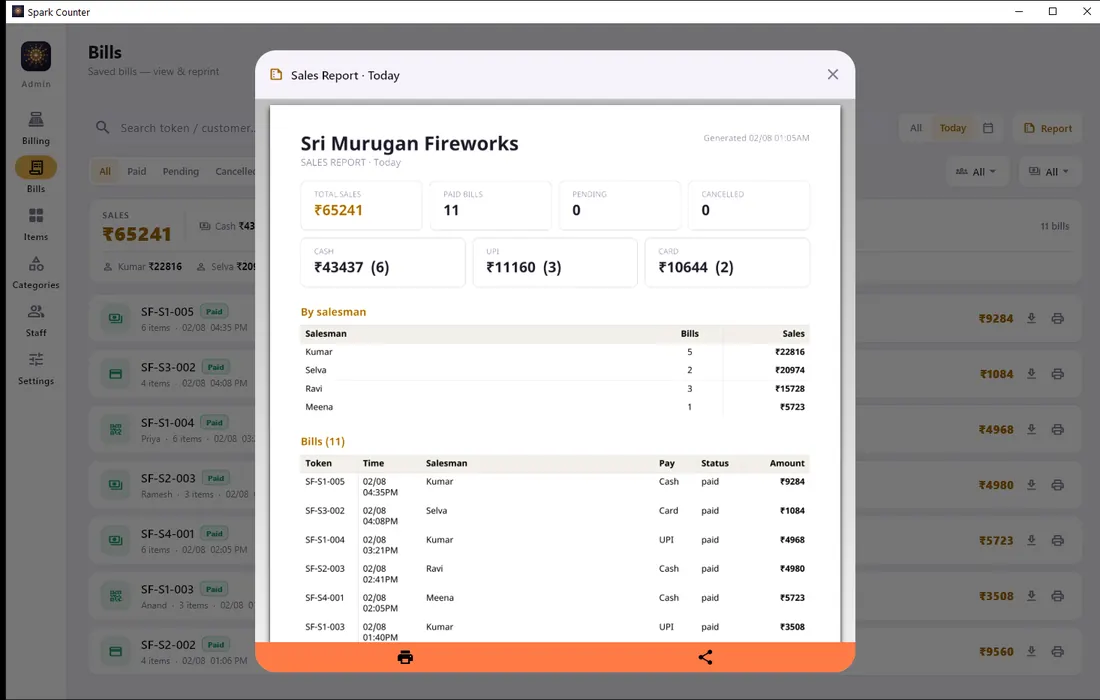
Close the day — one printable report நாள் கணக்கு — ஒரே பிரிண்ட் ரிப்போர்ட்
Help & troubleshooting
உதவி & பிரச்சனை தீர்வு
Something not working? Start here.ஏதேனும் சிக்கலா? அதற்கான தீர்வுகள் இங்கே!
Nine out of ten problems are the wifi or the Windows firewall — and both are two minutes of work.
90% பிரச்சனைகளுக்குக் காரணம் Wifi அல்லது Windows Firewall-ஆகத்தான் இருக்கும் — இவை இரண்டையும் இரண்டே நிமிடங்களில் எளிதாகச் சரிசெய்துவிடலாம்.
The phone says "can't reach the counter"ஃபோனில் "கவுண்டருடன் கனெக்ட் (Connect) ஆகவில்லை" என்ற செய்தி வருகிறதா?
Work through these in order — stop at the one that fixes it.
- Same wifi? The phone must be on the shop's own wifi, not on mobile data and not on a neighbour's network.
- Right address? On the counter open Settings → Connect devices. It shows the address and a QR code. Scan the QR instead of typing.
- Test it from the phone's browser. Open
http://<counter-ip>:4321/ping. If it printsok, the network is fine and the problem is inside the app — log out and back in. If it does not load, it's the firewall — next step. - Windows firewall. On the counter, right-click
allow_counter_firewall.bat→ Run as administrator. Windows silently adds a block rule the first time the app runs, and a block always beats an allow — that script removes it and opens port 4321. - Guest wifi / AP isolation. Some routers stop devices talking to each other. Move both off the "guest" network.
கீழ்க்காணும் படிகளை வரிசையாகச் செய்து பாருங்கள். பிரச்சனை எங்கு சரியாகிவிட்டதோ, அத்துடன் நிறுத்திக்கொள்ளுங்கள்.
- ஒரே Wifi-யில் உள்ளதா? உங்கள் ஃபோன் கடையின் Wifi நெட்வொர்க்கில்தான் இணைக்கப்பட்டுள்ளதா என்பதை உறுதி செய்து கொள்ளுங்கள் — மொபைல் டேட்டாவிலோ அல்லது பக்கத்து கடை Wifi-யிலோ இருக்கக்கூடாது.
- சரியான அட்ரஸ் தானா? கவுண்டர் சிஸ்டமில் Settings → Connect devices என்பதைத் திறந்து பாருங்கள். அங்கு IP முகவரியும் (Address), QR கோடும் இருக்கும். முகவரியை டைப் செய்வதற்குப் பதிலாக, நேரடியாக QR கோடை ஸ்கேன் செய்யுங்கள்.
- ஃபோன் பிரவுசரில் (Browser) டெஸ்ட் செய்யவும்.
http://<counter-ip>:4321/pingஎன்று டைப் செய்யுங்க.okஎன வந்தால் நெட்வொர்க் சரியாக உள்ளது, பிரச்சனை ஆப்பில் (App) இருக்கலாம் — லாக்-அவுட் (Logout) செய்துவிட்டு மீண்டும் லாகின் (Login) செய்யவும். திறக்கவே இல்லை என்றால் இது Firewall பிரச்சனை — அடுத்த படியைப் பார்க்கவும். - Windows Firewall. கவுண்டர் சிஸ்டமில் உள்ள
allow_counter_firewall.batஃபைல் மீது right-click செய்து Run as administrator என்பதைக் கிளிக் செய்யவும். ஆப்பை முதல்முறையாகப் பயன்படுத்தும்போது Windows தானாகவே ஒரு block rule-ஐ உருவாக்கிவிடும், block எப்போதுமே allow-ஐ விட மேலோங்கும் — இந்த script அந்த பிளாக்கை நீக்கி, port 4321-ஐத் திறந்துவிடும். - Guest Wifi. சில ரவுட்டர்களில் (Routers) "Guest" நெட்வொர்க்-ல இணைக்கப்பட்ட டிவைஸ்-கள் ஒன்றுடன் ஒன்று பேச முடியாது. சிஸ்டம் மற்றும் ஃபோன் ஆகிய இரண்டையுமே "guest" நெட்வொர்க்-ல இருந்து மாற்றி, கடையின் மெயின் Wifi-யில் இணையுங்கள்.
I closed the counter window and the phones stoppedகவுண்டர் விண்டோவை மூடினேன், ஃபோன்-கள் நின்னுடுச்சு
Closing the window with ✕ does not quit Spark Counter — it hides to the system tray (bottom-right, near the clock) so the phones stay connected. Right-click that tray icon → Open to bring it back, or Quit to really close it. If the phones stopped, someone used Quit, or the PC slept. Open the app again and the phones reconnect on their own; carts are not lost.
விண்டோவை மூடினால் ஆப் மூடப்படாது: நீங்கள் ✕ (Close) பட்டனை அழுத்தி மூடினால் Spark Counter முழுமையாக மூடப்படாது. அது ஸ்கிரீனின் கீழ் வலதுபுறத்தில் உள்ள கடிகாரம் அருகே (System Tray) சென்று பின்னணியில் தொடர்ந்து இயங்கிக்கொண்டிருக்கும். எனவே, ஃபோன்களும் கனெக்டிலேயே இருக்கும்.
மீண்டும் திறப்பது / முழுமையாக மூடுவது எப்படி? அந்த சிஸ்டம் ட்ரேயில் (System Tray) உள்ள ஐகான் மீது right-click செய்து Open கொடுத்தால் மீண்டும் விண்டோ ஓபன் ஆகும். Quit கொடுத்தால் மட்டுமே ஆப் முழுமையாக மூடப்படும்.
ஃபோன்கள் ஏன் டிஸ்கனெக்ட் (Disconnect) ஆனது? யாரோ Quit கொடுத்து ஆப்பை முழுமையாக மூடியிருக்கலாம், அல்லது கம்ப்யூட்டர் ஸ்லீப் மோடுக்கு (Sleep Mode) சென்றிருக்கலாம். கவுண்டரில் மீண்டும் ஆப்பைத் திறந்தாலே ஃபோன்கள் தானாகவே கனெக்ட் ஆகிவிடும் — கார்ட்டில் சேர்த்திருந்த பொருட்களும் அழியாது.
"Already logged in on another device""வேற டிவைஸ்-ல ஏற்கனவே லாகின் ஆகியிருக்கு"
One staff account can be logged in on one phone only — that is deliberate, so a PIN cannot quietly be shared around the shop. To move an account to a different phone, either log out properly on the old phone, or on the counter go to Staff, find that person's tile (it names the phone they are on) and press the log-out-device button. The new phone can log in immediately after.
ஒரு ஸ்டாஃப் அக்கவுண்ட்டை ஒரே நேரத்தில் ஒரு ஃபோனில் மட்டுமே பயன்படுத்த முடியும். ஸ்டாஃப்களின் PIN நம்பர் கடை முழுவதும் பரவுவதைத் தவிர்க்கவும், பாதுகாப்பிற்காகவும் இது திட்டமிட்டே இவ்வாறு வடிவமைக்கப்பட்டுள்ளது.
வேறொரு ஃபோனுக்கு லாகினை மாற்றுவது எப்படி? முதலில் பழைய ஃபோனில் அக்கவுண்ட்டை முறையாக லாக்-அவுட் (Logout) செய்துவிட வேண்டும், அதன்பிறகு புதிய ஃபோனில் லாகின் செய்யலாம். பழைய ஃபோன் கையில் இல்லை என்றால், கவுண்டர் சிஸ்டமில் Staff பகுதிக்குச் செல்லுங்கள் — அங்கே குறிப்பிட்ட ஸ்டாஃபின் டைலில் (அவர்கள் எந்த ஃபோனில் லாகின் செய்திருக்கிறார்கள் என்ற விவரம் அங்கே காட்டும்) log-out-device பட்டனை அழுத்துங்கள். இப்படிச் செய்த மறுகணமே, புதிய ஃபோனில் எந்தப் பிரச்சனையும் இல்லாமல் லாகின் செய்து கொள்ளலாம்.
Start bill numbers again from 001 for a new seasonபுது சீசன்-க்கு பில் நம்பரை 001-ல திரும்ப ஆரம்பிக்கணும்
Settings → Bill number → "Start again from 001". Old bills keep their old numbers and stay in history — nothing is deleted. Spark will ask for a fresh prefix for the new season (it can suggest one, like 26) because reusing an old prefix would hand two customers the same bill number.
Settings → Bill number-க்குச் சென்று, "001-ல் திரும்ப ஆரம்பி" என்பதைத் தேர்ந்தெடுக்கவும்.
பழைய பில்கள் என்ன ஆகும்? பழைய பில்கள் எதுவும் அழியாது — அவை அனைத்தும் அதற்கான எண்களுடனேயே history-ல் பத்திரமாக இருக்கும்.
கவனிக்க வேண்டிய முக்கிய குறிப்பு (புதிய Prefix): புதிய சீசனுக்காக பில் நம்பரை ரீசெட் செய்யும்போது, ஒரு புதிய prefix-ஐ (உதாரணமாக 26 என்பது போல) சிஸ்டமே பரிந்துரைக்கும். பழைய prefix-ஐயே மீண்டும் கொடுத்தால், இரண்டு வெவ்வேறு கஸ்டமர்களுக்கு ஒரே பில் நம்பர் போயிடும்.
Where is my data, and how do I back it up?என் டேட்டா எங்க இருக்கு, backup எப்படி எடுக்கணும்?
Everything lives in one database file on the counter PC — no cloud copy, so the backup is yours to keep. Copy that file to a pen drive at the end of each selling day; if the PC ever dies, put the file back and every bill, item and staff account returns. Ask us and we will show you the exact folder on your machine.
டேட்டா எங்கே சேமிக்கப்படுகிறது? உங்கள் டேட்டா அனைத்தும் கவுண்டர் PC-யில் உள்ள ஒரே ஒரு database ஃபைலில் மட்டுமே சேமிக்கப்பட்டிருக்கும். கிளவுடில் (Cloud) இதற்கான காப்பி ஏதும் இருக்காது — எனவே, உங்கள் டேட்டாவை backup எடுத்துப் பாதுகாப்பது உங்கள் பொறுப்பாகும்.
Backup எடுப்பது எப்படி? தினமும் கடை வேலைகள் முடிந்ததும், அந்த database ஃபைலை மறக்காமல் ஒரு pen drive-ல் காப்பி செய்து வைத்துக்கொள்ளுங்கள்.
Backup ஏன் அவசியம்? ஒருவேளை கம்ப்யூட்டரில் திடீரென ஏதேனும் பழுது ஏற்பட்டால், அந்த pen drive ஃபைலை வைத்து பழைய பில்கள், பொருட்களின் விவரங்கள் மற்றும் ஸ்டாஃப் அக்கவுண்ட்கள் என அனைத்தையும் மீண்டும் எளிதாகக் கொண்டுவந்துவிடலாம்.
அந்த ஃபைலை எப்படிக் கண்டுபிடிப்பது? உங்கள் கம்ப்யூட்டரில் அந்த ஃபைல் உள்ள folder எங்குள்ளது என்பதைத் தெரிந்துகொள்ள எங்களைக் கேளுங்கள், நாங்கள் காட்டுகிறோம்.
Get Spark
Spark-ஐத் தேர்ந்தெடுங்கள்
We help you set it up before your first saleமுதல் விற்பனைக்கு முன்பே எல்லாம் செட் பண்ணித் தருவோம்
The price list, the discounts, the staff accounts and the licence — we go through all of it with you, so the counter is ready before you sell the first box. Email us and we will take it from there.
Price list, தள்ளுபடி விவரங்கள், ஸ்டாஃப் அக்கவுண்ட், லைசென்ஸ் — எல்லாவற்றையும் உங்களுடன் சேர்ந்து அமைத்துத் தருகிறோம். நீங்கள் முதல் பொருளை விற்பனை செய்வதற்கு முன்பாகவே கவுண்டர் தயாராக இருக்கும். எங்களுக்கு ஒரு மெயில் அனுப்புங்கள், மீதியை நாங்கள் பார்த்துக்கொள்கிறோம்.